PDF Smooth Reader & Editor
- 3.5
- Rating
- 50.00K
- Installs
- Free
- Price
 Analysis by App-foxy
I approached PDF Smooth Reader & Editor as the kind of tool you open when a PDF is no longer just something to read. The app is positioned as a productivity companion for viewing, editing, converting, scanning, and organizing documents, so its appeal is easy to understand: instead of moving between several separate utilities, I can try to handle the whole document job in one place.
That promise matters most in ordinary situations. I might receive a form in an email, scan a signed page, tidy a document, and then save a version that is ready to send. A dedicated reader is usually better for quiet reading, while a specialist scanner or editor may go deeper in one area. This app takes a different route. It is aimed at reducing the number of stops in a small document workflow.
My overall impression is that it makes the most sense for people who regularly deal with PDFs but do not want a complicated professional suite. It is free, rated for Everyone, and available for devices running Android 8.0 or later. The current release is version 1.0.9, and the app comes from CORPS ENSEIGNANT, also identified as SARL CORPS ENSEIGNANT.
You May Also Like

 Pandora - Music & Podcasts
Pandora’s Music Is Easy to Start, but Harder to Recover
Pandora’s strength is its low-effort path from a seed to a station. Its weak spot is how much confidence it asks you to place in connection, setup, and quiet recovery.

 8 Ball Pool
 Is Built on Rivalries, Rematches, and Routine
A close look at the rivalries, rematches, shared routines, and unanswered safety questions that turn a quick pool match into a persistent mobile community.

 Samsung Music
’s Quiet Strength Is Playing What You Already Own
Its reach comes less from spectacle than from dependable access to a personal library. That simplicity is both the app’s strongest retention engine and its ceiling.

 AccuWeather: Weather Radar
AccuWeather Review: A Quick, Clear Forecast for Everyday Decisions
For everyday plans, the best forecast is the one you can understand quickly. AccuWeather makes rain timing, radar, and local conditions easy to act on, with a few trade-offs.

 Hill Climb Racing
Why Hill Climb Racing Still Turns Crashes Into One More Run
A tiny car, a bumpy hill and one more upgrade: Hill Climb Racing keeps resurfacing because its simple chaos makes every near-miss feel personal.

 AliExpress - Shopping App
AliExpress Makes Global Shopping Feel Personal, but Shoppers Bear the Risk
AliExpress turns a global marketplace into a pocket-sized discovery engine. Its reach is useful, its shopping loop compelling, and its trade-offs easy to miss.
More From Our News Desk
View All News


What to consider before making it your main PDF tool
The first question is not whether an app can open a PDF. Almost every modern phone can do that in some form. The better question is whether the app fits the way I handle documents from start to finish. If I only read occasional files, a built-in viewer may be enough. If I annotate contracts, collaborate on large reports, or need highly specialized editing, a more focused solution may be the safer choice.
For this app, I would judge the experience through four practical tests. Can I find a document quickly? Can I move from reading to a useful action without opening another app? Does scanning feel like part of the same workflow rather than a separate task? And when I convert or edit a file, is the result convenient enough for everyday sharing?
Those questions are more useful than looking only at the feature list. An all-in-one PDF app can save time, but it can also feel less refined than a tool built around one job. The trade-off is convenience versus depth. I would choose this app when keeping the workflow together matters more than having the most advanced controls in every individual area.
The audience is broad. Students can use it for course handouts and scanned notes. Freelancers can keep invoices, forms, and reference files in one working space. Families may find it useful for school paperwork or household documents. Small teams can benefit when the task is simply to open, adjust, convert, and pass along a PDF without introducing a larger office system.
I would be more cautious if my work depends on exact layout control, complex form logic, or a long chain of professional review. In those cases, the important question is not whether this app can perform a basic action, but whether it gives enough control at the edges. A lightweight workflow is a strength until the document itself becomes demanding.
Why the all-in-one approach is useful
The strongest idea here is not any single function. It is the transition between functions. A document may begin as a scan, become a PDF, need a small correction, and then require conversion for someone else. Using separate apps for each stage creates extra saving, sharing, and file-location decisions. A unified app can make that chain feel more direct.
There is also a practical benefit for people who are not comfortable managing several document utilities. One familiar interface is easier to remember than a reader for one task, a scanner for another, and a converter for a third. That simplicity can be more valuable than a long list of advanced options that I rarely use.
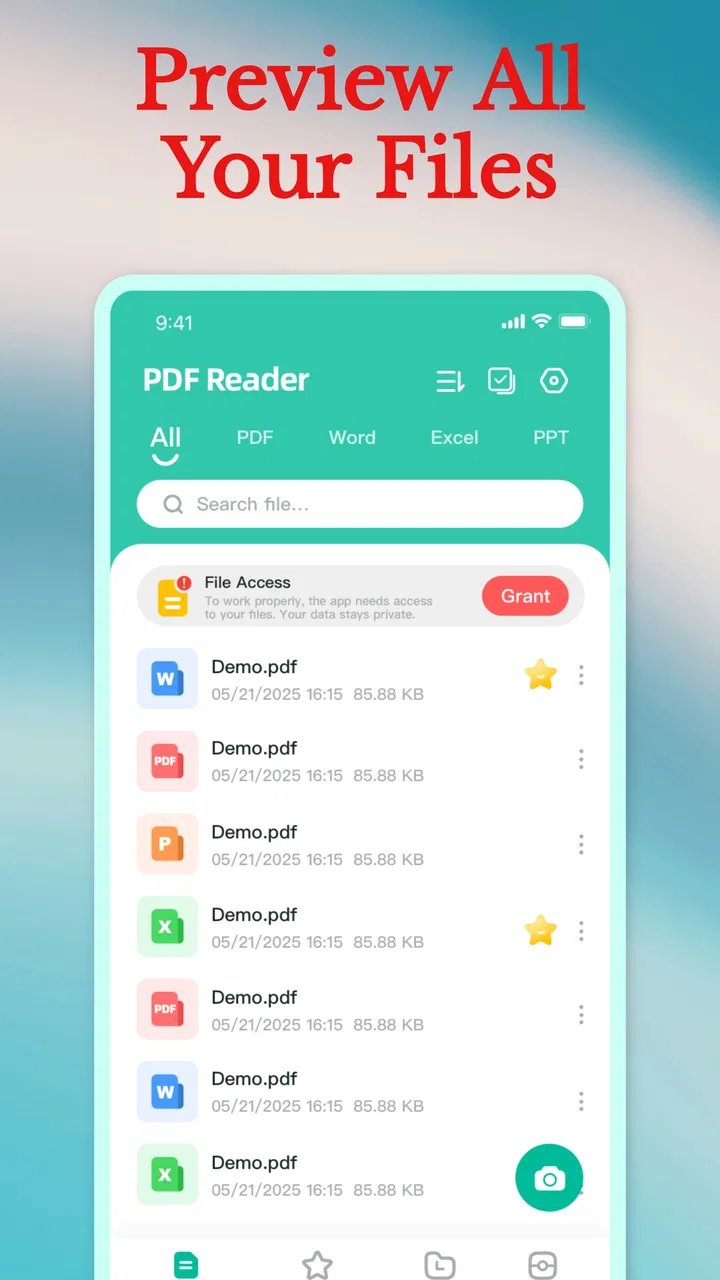
Another useful angle is file organization. PDF work often becomes frustrating because the document is technically available but difficult to locate. A reader that also helps manage files encourages me to treat the phone as a working document cabinet rather than merely a place where attachments accumulate. I would still keep important originals backed up elsewhere, but the app can serve as a more practical front door for everyday files.
My advice is to create a simple habit around it: finish one document before starting the next, use clear filenames, and keep the final version separate from a rough scan or temporary conversion. This is not a flashy feature, but it prevents the common mistake of sending an unfinished file simply because several similar copies are sitting together.
Everyday workflows where it can save time
Imagine receiving a school permission form as a PDF. I can open it, inspect the pages, make the necessary adjustments, and use the scanning side of the app if a handwritten page needs to be added. Once the document is complete, converting or managing the file from the same general tool is more comfortable than bouncing between unrelated apps. The value is not dramatic on one file; it becomes noticeable when the same pattern happens every week.
A self-employed user might have a different routine. An invoice arrives as a PDF, a receipt is captured with the phone, and supporting pages need to be kept together. An all-in-one workspace helps maintain momentum because the user is thinking about the client or expense, not about which utility handles each small operation.
Students may appreciate the reading side first. A phone is not always the best screen for a long textbook, but it is useful for checking a page on the way to class, reviewing a handout, or finding a detail in a document. The ability to move from viewing into file management is helpful when course materials arrive through different channels.
One less obvious use is preparing a clean handoff. Before sending a document, I would open it once more, check the page order, confirm that the scan is readable, and make sure I am sharing the intended version. The app’s broad workflow makes this final inspection easier to include in the routine. It does not replace careful review, but it encourages it.
Where this app has the clearest advantage
The biggest advantage is workflow compression. Reading, editing, conversion, scanning, and file handling belong to the same family of tasks, and keeping them close together reduces friction. That is especially attractive on a phone, where switching between apps can make a simple document job feel surprisingly long.
The free price also changes the decision. Someone who needs occasional PDF help can try a broad tool without first committing money to a specialist product. That does not automatically make it the best choice for every situation, but it lowers the barrier for students, households, and casual users who want more than a basic viewer.
The age rating of Everyone makes the app approachable for a wide range of users. In practical terms, that suits shared household devices and general-purpose productivity use. I would still teach younger users good document habits, particularly around saving and sharing personal paperwork, because an accessible app does not remove the need for sensible handling.
Its public reach also suggests that the concept has found an audience: the app has passed fifty thousand installs. The average rating is three point five from ninety-two ratings, with nineteen written reviews. I read that as a mixed but meaningful signal. There is enough usage to show real interest, yet the rating also reminds me not to expect a universally perfect experience.
The version number, 1.0.9, places the app in a relatively early stage of its product life. That can be positive because the experience may continue to improve, but it also makes me more careful about relying on it as the only home for important documents. I would keep original files in a second location until I had used the app long enough to trust my own workflow.
Small habits that make the experience better
When scanning, I would avoid treating the phone camera as an afterthought. Good light, a flat page, and a steady angle matter more than any button inside the app. A poor capture can remain difficult to read even after it becomes a PDF. The app can be useful in the scanning stage, but the quality of the source still determines the quality of the result.
For conversions, I would compare the finished file with the original before deleting anything. Text-heavy pages and visually delicate documents deserve a quick page-by-page check. Conversion is convenient when the recipient needs another format, but convenience should not be confused with guaranteed visual sameness. Keeping the source until the handoff is complete is a sensible safeguard.
For editing, I would make one change at a time and save a clearly named copy. That approach is particularly helpful when a document has to be sent back for approval. It gives me a simple trail between the original and the version I intend to share, without depending on memory.
For file management, I would separate active documents from finished ones. A folder or naming pattern based on the purpose of the file is more useful than relying on the date alone. This is a non-obvious strength of using a management-oriented PDF app: it can encourage better document discipline, not merely provide a place to open files.
When a different kind of app may fit better
A basic system viewer remains the better option for someone who only opens a PDF once in a while. It is often faster to use what is already installed, especially when the task is simply reading an attachment. Installing a broader app makes sense when I expect to scan, edit, convert, or organize documents repeatedly.
A dedicated scanner may be preferable for users whose main need is capturing paper. Specialist scanning tools often make that one workflow the center of the experience. If scanning quality and capture controls matter more than reading or file management, I would compare those options carefully rather than assuming an all-in-one app must win.
Likewise, a focused PDF editor may suit professionals who need precise document changes every day. The more exact the layout, forms, annotations, or review process, the more important depth becomes. PDF Smooth Reader & Editor is easier to justify when the work is varied and practical, not when one demanding function must meet a strict professional standard.
Cloud-based office platforms can be a better fit for teams that need shared access, coordinated comments, or a broader document system. I would not choose a general mobile PDF utility as a substitute for an established team process unless my needs were modest. The app is most convincing as a personal or small-scale tool for getting documents ready and keeping them manageable.
There is also a privacy and reliability decision in any document app. I would be particularly thoughtful with identity documents, financial paperwork, medical files, or confidential business material. The safest choice depends on the workflow I trust, the storage arrangements I use, and whether I need a formal organizational system. For sensitive files, convenience should never be the only deciding factor.
The real cost of changing your document routine
Because the app is free, the main cost of switching is not a subscription decision. It is the time needed to establish new habits. I would need to decide where existing PDFs belong, how I name scans, and which copies are originals. That setup is small, but ignoring it can make any file manager feel cluttered.
There is also a learning cost when moving from a single-purpose reader. A broader app presents more possible actions, and that can initially feel like extra choice. I would not judge it after opening one file. I would test a complete mini-workflow: open a document, make a modest change, scan an additional page, produce the needed format, and locate the finished copy afterward.
That test answers the questions that matter in real use. Can I understand the path without repeatedly guessing? Can I tell which file is final? Does the app help me finish the task, or does it merely offer many starting points? If the workflow feels natural, the all-in-one design is doing its job.
I would also avoid moving an entire archive immediately. Start with a few non-sensitive documents and use the app for a week of ordinary tasks. This approach makes it easier to identify friction before the app becomes central to everything. It is a practical way to evaluate the early version without making an irreversible change to a document system that already works.
My recommendation for different users
I recommend trying this app if you want a free, general-purpose PDF workspace on a compatible Android device and your documents regularly move through more than one stage. It is particularly suitable for students, households, freelancers, and anyone who needs to scan a page, inspect a file, make a practical adjustment, and keep the result organized.
I would not make it my first recommendation for someone who only reads PDFs, because a simpler viewer may be quicker and less distracting. I would also look elsewhere if my work depended on highly specialized editing, formal collaboration, or a carefully controlled document-management environment. In those cases, a focused alternative may justify its extra complexity.
For everyone else, the sensible approach is to use it as a flexible working tool rather than a promise that every PDF task will be effortless. Keep originals, check converted files, use clear names, and test the workflow on ordinary documents first. Those habits address the main risks of an all-in-one app while preserving its convenience.
After weighing the alternatives, I see PDF Smooth Reader & Editor as a practical choice for reducing app switching. Its strongest case is not that it replaces every specialist tool, but that it brings common PDF jobs into one approachable productivity app. The mixed three point five average means I would try it with realistic expectations, yet the free access and broad purpose make that trial easy to justify.
My final verdict is simple: choose it when convenience, variety, and a low-cost starting point matter most. Skip it when your priority is advanced control in one narrow area. For everyday document handling, it is worth testing because it addresses the messy middle between merely reading a PDF and needing a full professional document suite.
FAQs for PDF Smooth Reader & Editor
01What features does PDF Smooth Reader & Editor offer?
PDF Smooth Reader & Editor provides a comprehensive suite of tools for reading and editing PDFs. It includes features such as annotation, highlighting, and text editing. Users can also merge or split documents, fill out forms, and sign PDFs digitally. The app supports cloud integration for easy access to documents across devices.
02Is PDF Smooth Reader & Editor compatible with both Android and iOS?
Yes, PDF Smooth Reader & Editor is available for both Android and iOS platforms. The app is designed to provide a seamless experience on smartphones and tablets, ensuring that users can access and edit their PDFs on any device, regardless of the operating system.
03How user-friendly is the interface of PDF Smooth Reader & Editor?
The interface of PDF Smooth Reader & Editor is designed with user-friendliness in mind. It features an intuitive layout with easy-to-navigate menus and clear icons. New users will find it straightforward to locate and utilize the various tools available, making it suitable for both beginners and experienced users.
04Does PDF Smooth Reader & Editor require an internet connection?
PDF Smooth Reader & Editor can function offline, allowing users to read and edit documents without an internet connection. However, certain features, such as cloud storage integration and online collaboration, will require internet access to fully utilize these capabilities.
05Are there any in-app purchases or subscription fees?
PDF Smooth Reader & Editor offers a free basic version with essential features. For advanced functionalities, users can opt for in-app purchases or subscribe to a premium plan. This subscription model allows access to additional tools and removes ads, enhancing the overall user experience.
Pros
- User-friendly interface
- easy to navigate.
- Supports multiple file formats seamlessly.
- Offers annotation and highlighting tools.
- Fast loading times for large documents.
- Offline access to saved PDFs.
Cons
- Limited free version features.
- Occasional ads can be intrusive.
- No cloud storage integration.
- Advanced editing requires subscription.
- Limited customer support options.

PDF Smooth Reader & Editor
Gallery